
basic privacy guide for noobs

Don’t fall victim to a Joe Goldberg.
If you haven’t watched You on Netflix, it gives a glimpse into the absurd amount of info people put out about themselves nowadays. Spoiler alert. It’s not the best idea.
All jokes aside, I thought I’d open up the blog with some basic, easy to follow tips on improving personal security while using the web. You don’t have to be a security professional or even tech-savvy to follow along with this. If you do have any questions, feel free to shoot me an email.
But Lemar, why? I have nothing to hide. What’re they gonna do, look at pictures of my cat?
It’s a valid question. A very simple answer would be that your privacy is invaded by many sites you visit. Your internet service provider, search engines, governments, and private interests store massive datasets on us.
- Even if you trust an entity with your information, it’s not promised to always solely belong to them. We’re seeing more frequent instances of personal data being sold to third parties, and we all know companies always have our best interests in mind, right? If you think privacy isn’t important because you have nothing to hide, you might as well say free speech isn’t important to you because you have nothing useful to say. Privacy means something to everyone.
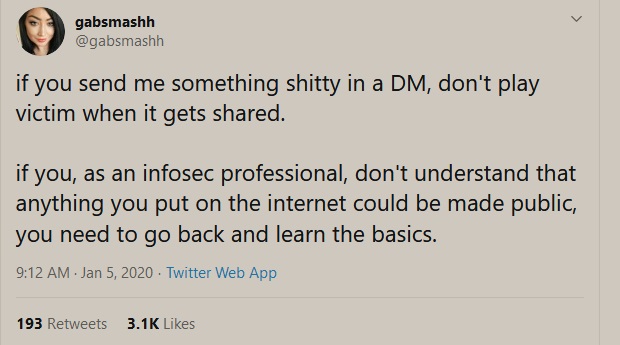
Gotta get this one out of the way. Seriously, guys, stop sharing info about yourself if you’re not prepared for it to be stored on some server, somewhere, forever. Ditching socials isn’t an attractive nor dare I say, feasible option for most, but it’s probably the easiest way to limit public info about yourself. Recognize that public comments and broadcasting real information about yourself puts you at risk, more often than not.
Keep in mind moving forward that typically the more you beef up your security, the less convenient your time utilizing the web will be. Lets get into it.
1. Use a password manager.
Convenience and security actually coexist with this one. Password managers allow you to store all of your passwords in one place on the cloud (a global network of servers). There are a few reasons for using one. Many data breaches occur because one website you used in 2006 got attacked, and your password was exposed. You know… that same password you use for basically every other website you visit, like club penguin. A good password manager generates unique passwords for each service you use, so you’re actually incorporating a ton of diversity into the log-in info you use. These managers usually have rigorous encryption, which makes it difficult for attackers to access them. As mentioned, you also get convenience with a password manager because you only have to remember one master password.
- My favorite is Last Pass. You don’t need the premium version, free is fine. Make your master password very secure, and generate new passwords for the sites you use inside the password manager! The password manager can and should be used across different devices, which should be secure themselves with pins, passwords, and two-factor authentication when possible.
Edit 10/30 Since this post, there has been some controversy with lastpass. I now recommend Bitwarden, you can migrate lastpass to bitwarden here.
2. Two-factor authentication.
You’ve probably clicked “Set Up Later” on the prompts urging you to set up two factor authentication across various sites. Basically, two factor authentication makes it so even if someone gained access to your password, they’d need an additional code from your phone to gain access. Now, when I mention your phone, I mean a mobile app like Google Authenticator or something similar, not your phone number. Using your phone number (as in, getting the authentication code over text) has been proven to be a great security risk because of Sim Card Hijacking, but it’s better than nothing. So, the next time the services you use prompt you to set up 2FA, just do it. Actually, go do it right now. Go.
3. Web Browsers
Use whatever web browser your heart desires, I guess. But, please be very wary of the add-ons and extensions you add to it, and how you have it configured. I will say you should definitely set up your default search engine to either DuckDuckGo or StartPage. I highly recommend you follow the following steps on setting up FireFox. You only have to do this once, and then you’re good to go. Otherwise, skip to section 4.
- Firefox is a very powerful browser that lets you control your privacy completely. Really, no other user-friendly browser compares. Getting maximum privacy and security settings will require some effort but in my opinion it’s very worth it.
- Download and install Firefox.
- Open up the “options” via the three dashed lines in the top right corner, and move to “Privacy and Security” via the tabs on the left. Change enhanced tracking protection to “Strict”. Don’t worry, this is unlikely to break any of the mainstream websites you visit and you can alter this setting on a per need basis as you deem fit.
- Under Cookies and site data, toggle delete when Firefox is closed. If you already have used firefox in the past, now is a good time to clear your data as well.
- Under Logins and Passwords, make sure “Ask to save logins and passwords” is unchecked. You can use the LastPass Firefox Add-On for this.
- Scroll further down to “History”, and change “Firefox will” to: “Use Custom Settings for history”. Toggle on “Always use privacy browsing mode”. This is important because over time, browsers pile up info on you and your revealing habits. Keep in mind, you won’t be able to check the history of sites you visit with this option.
- Under Address Bar, uncheck all suggestions. While this is convenient, it makes it so further information about you is collected.
- Under Permissions, click the Settings box for “Location”, “Camera”, “Microphone”, and “Notifications”. and select “Block new requests asking to access” for each one.
- Even though we trust Mozilla, disallow their request for Data Collection.
- Under Security uncheck “Block dangerous and deceptive content.” While it sounds like a great option to have, this service is actually provided by Google, which isn’t mentioned here. I’m not too fond of sharing with my info with Google, so we’ll be utilizing a different, more recommended extension for this service later on.
- Under Search Bar, change your default search engine to Duckduckgo. Opt out of search suggestions to prevent tracking.
- Under Home in settings, change your homepage and new tabs to open up with a blank page. Opt out of top sites and highlights.
- That does it for visible settings, but feel free to go even further by accessing settings under the hood.
- Type about:config in your firefox url box. Click “Accept risks and continue”.
- Open up PrivacyTools.IO. Scroll down to the “How to disable WebRTC in Firefox” section, and follow the instructions. This will allow us to capitalize on some more settings we’ll set up later.
- Browse the rest of the instructions on privacytools.io and tweak your settings accordingly.
- Add-ons and Extensions
- Head over to The Firefox Add-Ons directory.
- Search for HTTPS everywhere, and add it to your browser.
- Search for Ublock Origin, and add it to your browser. Alternatively, you could use Privacy Possum or Ghostery.
- If at any time an add-on breaks a site you visit or it prompts you to disable your ad blocker, you can go into the settings for the add-on and allow permissions for the site. Do this at your own risk and only if you trust the website. You don’t have to use these add-ons, but they are the ones I like.
That’s it for add-ons. You can do your own research and decide whether you want to personalize it even further.
4. Virtual Private Networks (VPN)
VPNs are a way to hide your identity on the websites you visit and from your internet service provider, as well as encrypt your traffic so as to prevent entities trying to track you. I cant emphasize this enough, stay away from free VPNs. Using a sketchy VPN may compromise your personal security. Pay the $5-$10 or so a month and use a decent service. I recommend IPVanish but do your research into a provider that fits your budget and needs.
5. Back Up Your Data.
You’ve probably heard the term “Ransomware” in the media as of recent. Some major attacks, causing hundreds of millions of dollars in damages, have affected people and companies because attackers hold data captive for a price. Most of the time, even when the attackers are paid, the data is lost anyways. The best way to defend is to have a proper backup and restoration process. The golden rule is to keep your files backed up to at least 3 locations. This way, even if one goes down, you still have copies. Go buy a hard drive and backup your photos, files, and whatever else you think is important just in case. This isn’t even really a security protocol, more so a general process to make sure your files are safe in case they get damaged or lost.
6. Utilize Security-Driven Services and Products.
For phone calls and messages, this might be Signal. For email this might be Proton Mail. Basically, most of the mainstream email service providers and just communication services in general have terrible security protocol, with some flat out reading your emails. The main take away from this section is that you should do your research and use products and services that you trust.
7. Change Operating Systems.
This one isn’t really for the average person, especially those who’ve grown accustomed to using an operating system. To summarize the benefits on why swapping to an operating system like Linux is ideal:
- Windows is a popular choice. Roughly 90% of all computers on the web are using it. This means as an attacker, I’d want to develop my strategy and tactics biased towards Windows systems because there are just more fish in the sea. By swapping to a less used system, you’re improving your security through obscurity.
- Linux is open source(anyone can see the code that makes it). This might seem like a security nightmare, but is actually a critical element on why it’s secure. It allows the good guy professionals to inspect how the system is made and make sure there are no bugs or vulnerabilities.
- Probably the most significant advice I could give any organization or person is to limit admin permissions. Linux does this by having a better user privileges model. While windows users are generally given administrator access by default, Linux in contrast restricts admin access.
- If you aren’t fond of switching operating systems, attempt to learn to use a virtual machine for any risky online behaviour you may wish to engage in.
8. Scaling To Other Devices
Most of the information I wrote here can be applied to various devices, so apply it accordingly. Disable your bluetooth and location services on your mobile device when not in use, and enable your VPN on your mobile device as well. Get rid of apps you don’t use. Know that the texts you send have essentially no encryption. At the very least, limit permissions on your apps. Twitter doesn’t need your location. Snapchat doesn’t need access to your texts. Nice video about securing your phone here.
9. Retain and Work Towards Securing Pre-Existing Personal Data.
Research yourself. You may be surprised at what you find. Ask Google to provide you your data file. Enter your email on have I been pwned. Search yourself up on Google, and contact ‘owners’ of your data to see if you can get your information removed.
And that should do it. Again, if you have any questions or anything to add, feel free to shoot me an email.